Printout for the AV guys
It's a good idea to have a printout of the song presentation to give to the person who will be flipping your slides. This will not only be a summary of what will happen, but it is the best place for you to write down any instructions that you wish to be carried out and when. I believe the best printout to be a copy of the "outline" of the presentation. This turns out to be a list of the slide titles only. Your song presentation will fit on two or three sheets at the most. First, let me suggest that you use the "normal" screen view and not the slide view where you can't read the slides anyway. To get there, click on the Normal View icon at the lower left of the screen.
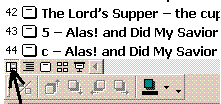
You now see the slide titles on the left of the screen and the selected slide in the remainder of the screen.
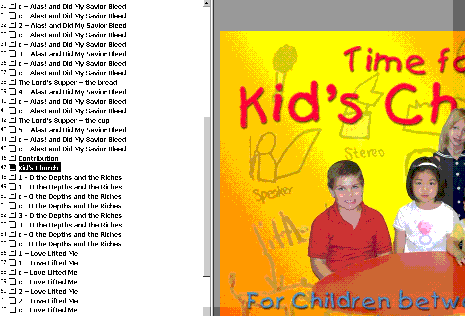
I have selected the Kid's Church slide. It says "Kid's Church" because I named the slide "Kid's Church". To put a title on a slide you have made, just type the title you want after the slide number on the left of the screen. If the title shows up in the slide in which you have inserted a picture and you do not want it to do so, click on the title on the slide to activate it.

Then right click on the outline of the title box. You should get a menu. Select Order then Send to back.
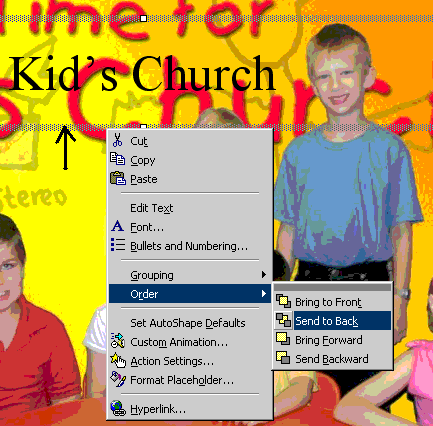
Your title is now hidden behind the picture on the slide but still shows in the outline listing on the left of the screen.
You can even type into the title any instruction you wish to show up on the outline print.
Now - to get the outline print, click on File in the upper left corner of your screen. Then click on Print.
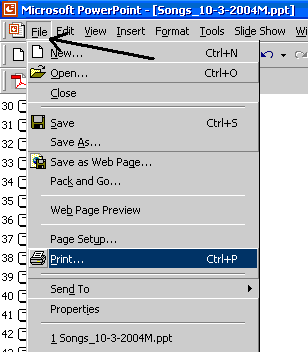
On the Print dialog window, click on the arrow to the right of Slides then click on Outline View. Then click on OK to print.

Make a copy for the computer operator and another one for yourself.